
What are Optional Line Items in Salesforce and Why are they Useful?
Optional Line Items are Products added to a Salesforce Quote or Opportunity but their values do not contribute to the total value of the Quote or Opportunity.
Consider the scenario where your business would like to offer one or more additional products to a customer and present them on a quote, but doesn’t want to distort pipeline or forecasts.
Optional Line Items work in Sales Cloud by offering the sales use a simple toggle to click to designate a line item as optional.
The price of the optional line item is kept the same, but its value is removed from the value of the quote or opportunity.
How to set up Optional Line Items
- To enable this feature, simply move the slider next to ‘Optional Line Items’ on the Flexpricer Settings Page (Settings subtab)

How to use Optional Line Items
Optional Line Items are available only in Flexpricer’s Vision Product Selector Lightning Web Component (LWC). If you are using the Visualforce page version, you will need to transition to LWC before using this feature.
With this feature enabled, a toggle button will appear against each line item, on the left hand side of the product selector.

Disable the toggle button to mark the line item as optional. The line item turns red, and the toggle button is disabled. This designates the line item as optional and ‘additional’.
Additional optional line items can be considered in addition to the other line items.

If you drag the Additional Optional Line Item onto another line item, it becomes an Alternate Optional Line Item.
This is designated by the toggle button changing to an interchange icon, the line item becoming indented from its alternate and the price display alternating between the line items price and its difference with the alternate.

To designate the line item as Necessary (i.e. it is no longer Optional), turn off the Optional toggle or click the interchange icon. The line item will revert to standard (necessary) behaviour.
Note that you can easily remove Optional Line Items from the Opportunity or Quote by pressing the Trash Can icon.
Interaction with Configurator Options
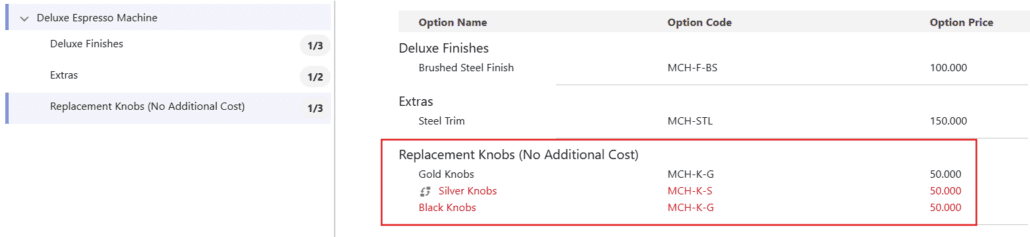
When configurator options are designated as Optional Line Items, the same toggle based behaviour applies within the configurator. Disabling the toggle marks the option as Optional, while enabling it marks it as Necessary.

When an Optional option is dragged onto a Necessary option, it becomes an Alternate Optional option. This is indicated by the toggle changing to an interchange icon and the option appearing intended beneath the primary selection. Users do not need to manually define alternate relationships through icons.

All selections and changes are applied immediately, and the updated state is reflected in the configurator summary in real time. The configurator displays option in a modern table layout that includes Option Name, Option Code, and Option Price, ensuring clarity while configuring products.
Useful Administrator Information
- Optional Line Item functionality is implemented by ’rounding up’ the discount on the line item to 100%.
- Existing discount values, including the sales user’s discount, are preserved in fields on the line item, so that they can be recovered if the line item moves from being Optional to Necessary.
- When a line item is marked as ‘Additional Optional’ and the line item is saved, the following data is recorded on the line item.
- Optional Line Item Discount (percentage): the difference between the discount already set on the line item and 100%
- Optional Line Item (picklist): Additional
- When a line item is marked as ‘Alternate Optional’ and the line item is saved, the following data is recorded on the line item.
- Optional Line Item Discount (percentage): the difference between the discount already set on the line item and 100%
- Optional Line Item (picklist): Additional
- Necessary Line Item Master GUID: the GUID of the line item that this line item is an alternate of