
What is Configurator | How to Setup | How to Configure | How to Use
Nested Configurator Master Products | Configurator Dynamic Pricing
What is a Simple Product Configurator in Salesforce and Why is it Useful?
Flexpricer’s Simple Product Configurator enables you to connect products together in a ‘parent’ and ‘child’ relationship. The ‘children’ in the relationship can be used as
- configuration options with the ‘parent’
- additional products to up-sell / cross-sell
Consider a scenario where you plan to sell a top-end commercial coffee machine and there are options for a brushed steel, chrome or gloss black finish to the machine.
In Flexpricer, you can select the coffee machine you wish to customise and then select one of different finish options.
Two line items will be created – one for the coffee machine, the other for the option. Cleverly though, the line items are connected together and you can quickly and easily change the selected option by just pressing the ‘Configurator’ button.
Simple Product Configurator gives you additional flexibility by also enabling similar options to be grouped together and a set rules to govern how many of them are required.
Each of these groups of options is maintained through a ‘Group Relationship’ with the main product.
In the example above, a Group Relationship called ‘Finishes’ may be created and associated with the master Coffee Machine product and with three options available, a simple rule can specifies you must select only one of them.
You can have as many option groups as you like (within Salesforce’s performance governor limits) and they are all presented neatly in the left-hand column of the Configurator modal.
When you have multiple Configurator Master Products, each has its own configuration available in the Configurator.
All configurator rules need to be passed before the ‘Okay’ button can be pressed to add the line items to the opportunity or quote.
How to Setup Simple Product Configurator
- On the Flexpricer Settings page, enable Simple Product Configurator using the toggle. If you wish to use the Nested Master Configurator capability, enable this sub-feature.

- Added the Group Member and Group Relationship related lists to your Product page layout.
- Tip: In your app, add a tab to the Product Group object – this will make navigation easier when configuring your products.
You’re all set!
How to Configure Simple Product Configurator
First, please familiarise yourself with the Product Group Concept.
Preparation Example
- Pick a product that you wish to be the ‘parent’ in the Configurator relationship and the options that you wish to have for this product.
We call the parent product the ‘Configurator Master Product’ and will use the example of a Coffee Machine. - Try not to build out complicated options on your first Configurator Master Product. Keep it simple and you will learn the concepts more quickly.
- Step 1: Create a Product Group of record type ‘Membership’ for your first group of options. In the example, let’s create a Product Group called ‘Finishes Not Selected’.
The ‘Finishes Not Selected’ group will contain ‘Configurator Options’ (standard Salesforce Products) that are not, by default, selected when choosing the Coffee Machine. - Now, let’s assume that we have three finishes to our Coffee Machine: Gold Finish, Silver Finish and Bronze Finish. Create these as standard Salesforce Products, with Active PricebookEntries in the same Pricebook as each other and as the Configurator Master Product.
- Step 2: Associate the Gold Finish, Silver Finish and Bronze Finish products with the ‘Finishes Not Selected’ Product Group by creating Group Member records for each of them.
Group Member records are junction records between Products and Product Groups.
In the Group Members related list on the ‘Finishes Not Selected’ Product Group, you should see your three finishes products.
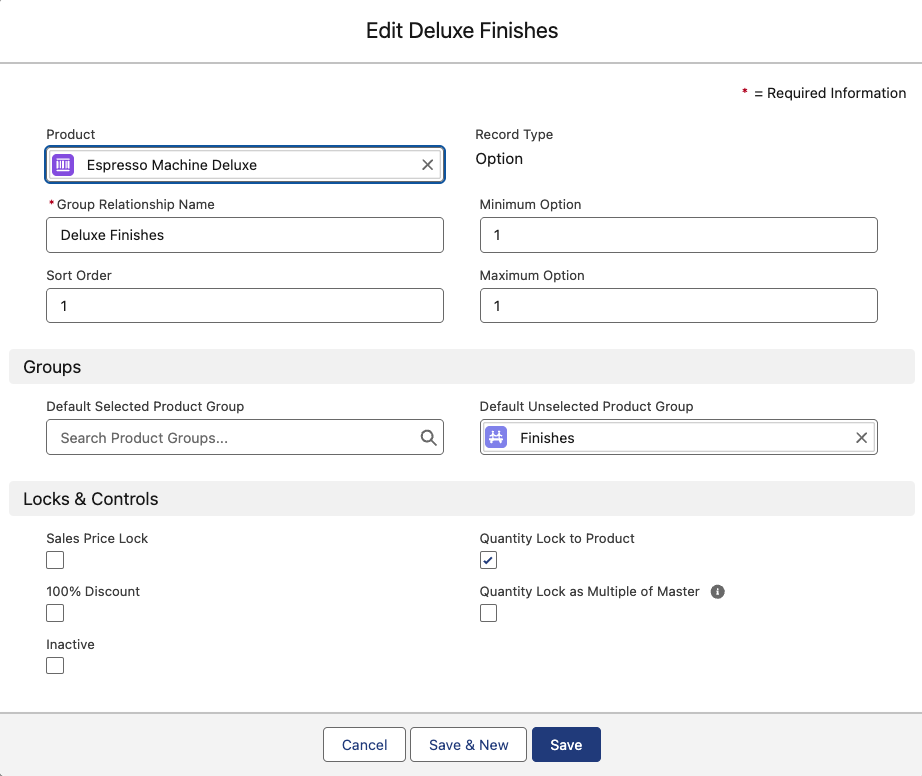
- Step 3: Now, set up your Coffee Machine product as the Configurator Master Product by creating a Group Relationship record of record type ‘Option’ from the Group Relationships related list. Populate the Product lookup of this record with the Coffee Machine product. You’ll notice some other fields on the layout.
- Populate the Name field with the name ‘Deluxe Finishes’
- Populate the Default Unselected Product Group lookup with the ‘Finishes Not Selected’ Product Group (this means that none of the Configurator Options in this group will be selected by default)
- Leave the Default Selected Product Group lookup empty (this means that there are no default options selected)
- Populate the Minimum Options field with 1 (this means that the user must select at least one Configurator Option from the products available in this group relationship)
- Populate the Maximum Options field with 1 (this means that the user must not select more than one Configurator Option in from the products available in this group relationship)
Your Group Relationship should look similar to this image before saving.
How to Use Simple Product Configurator
In Flexpricer, when you add a product has one or more Group Relationship records of record type ‘Option’ associated with it, the Configurator Modal will appear before the line item is added to the opportunity/quote.
The modal displays Configurator Master Products and their Group Relationships in the left-hand column, with the Configurator Options available within each Group Relationship displayed in the right-hand column.
The list of available Configurator Options changes based on the Group Relationship selected.
Use the checkboxes to select the appropriate options within each Group Relationship and if all the rules are met, the badge displaying the number of selected options will display using the default colour (typically grey).
If the minimum number of Configurator Options are not selected, or the maximum number of options are exceeded, the badge showing the number of selected options will be displayed in red and the ‘Okay’ button will be unavailable.
When the ‘Okay’ button is available, press it to update the cart area with the line items.
Advanced Usage: Nested Configurator Master Products
A Configurator Master Product can contain Configurator Options that themselves are Configurator Master Products.
Flexpricer includes unlimited nesting of Configurator Master Products, within the governor limits of Salesforce.
This feature allows for ‘bundle within bundle’ configurations of Salesforce Products.
When a Configurator Option is selected, and associated Product record has a Group Relationship record of record type ‘Option’, the Product appears as another Configurator Master Product in the left-hand column.
Deselecting the Configurator Option removes the Configurator Master Product and its associated Group Relationships from the left-hand column.
Advanced Usage: Configurator Dynamic Pricing
Simple Product Configurator supports ‘Dynamic Pricing’ where the Sales Price of the Configurator Master Product changes as a roll-up of either the sum of the selected Configurator Options or the multiple of the Configurator Options.
This means that you can set up Configurator Master Products whose prices are derived by either adding up or multiplying together their Configurator Options.
You can choose to use Configurator Dynamic Pricing by selecting either Add or Multiply on the Configurator Dynamic Pricing picklist on Product record of the Configurator Master Product. If you don’t choose one of these options, there are no dynamic pricing calculations.
Useful Administrator Information
- To change the columns visible in the Configurator, use the ‘Configurator Columns’ Field Set on Opportunity Product and Quote Line Item to specify the fields to display.
- On the Group Relationship record, you can specify whether, for that Group Relationship…
- Option Prices are editable
- Quantities of each Option are locked to the parent item or editable (‘Quantity Lock to Product’)
- Quantities of each Option are locked as a multiple of the parent item (‘Quantity Lock as Multiple of Master’)
- A 100% discount is to be applied to Options (if the price of the option is included in the parent item)
- If the Group Relationship does not specify that Configurator Option quantities are locked to the parent item, you can set Configurator-specific default quantities for those Options by populating the ‘Default Quantity (Configurator Option)’ field on the Group Members of the Product Groups in the ‘Default Selected’ and ‘Default Unselected’ fields.
- The Default Quantity of a Group Member will be used in preference to the Default Quantity on the Product when Group Member is used as a Configurator Option in the Configurator.
- When using ‘Quantity Lock as a Multiple of Master’ checkbox, the default quantity of the Option (either from the Product record or the Group Member record) is used as the multiple.
- Check the checkbox called ‘Inactive’ on the Group Relationship record to prevent the Group Relationship from appearing in the modal. This checkbox can be used when preparing Group Relationship records ahead of making a Configurator-based product or new configuration options live.