
Volume Pricing and Volume Discount Pricing Rules in Agentforce Sales
Flexpricer’s quantity-based volume pricing and volume discounting capabilities automatically applies price changes and discounts to customers based on the quantity of product they are buying.
Quantity-based changes can be applied in three different ways using the following terminology:
- Volume Pricing changes the Sales Price of an opportunity product or quote line item based on its quantity
- Volume Discounts sets a specific discount percentage on an opportunity product or quote line item based on its quantity
- Tiered Discounts (sometimes known as Quantity Price Breaks) calculate a discount percentage to apply to an opportunity product or quote line item based on the difference between the prices of specified quantity ranges
On a Product record in Salesforce, selecting ‘Volume’ in the Volume Price Option picklist, causes Flexpricer to apply a specific price or discount change to a line item based on the Volume Price records associated with the Product.
Selecting ‘Tiered’ in the Volume Price Option picklist causes Flexpricer to calculate a discount percentage to apply to the line item based on the difference between the list price and all Volume Price records up to the selected quantity. See below for details of each model.
Discounts and revised prices are automatically set by Flexpricer without additional interaction from the sales user, ensuring that the right quantity-based price is applied.
Use Volume Pricing when you want to incentivise the sale of higher quantities of individual products and make sure your sales team get the right price based on quantity entered.
Example 1: Quantity-based Pricing Rule in Agentforce Sales
A product has two Volume Pricing records
- Pricebook List Price: $1,000
- Minimum Quantity: 100 New Sales Price: $900
- Minimum Quantity: 1,000 New Sales Price: $800
The product has the Volume Price Option picklist value set to ‘Volume’.
When adding this product to an opportunity/quote, the following prices will be calculated
- Quantity 10 gives a total price for the line item of $10,000 as this is under the minimum quantity of 100
- Quantity 200 gives a total price for the line item of $180,000 as this is above the minimum quantity of 100 but below 1,000. The Sales Price is adjusted to match the price on the Volume Price record entry.
- Quantity 2,000 gives a total price of the line item of $1,600,000 as this is above the minimum quantity to achieve the rate of $800 per unit.
Example 2: Quantity-based Discount Rule in Agentforce Sales
A product has two Volume Pricing records
- Pricebook List Price: $1,000
- Minimum Quantity: 100 Discount Percentage: 5%
- Minimum Quantity: 1,000 Discount Percentage: 15%
The product has the Volume Price Option picklist value set to ‘Volume’.
When adding this product to an opportunity/quote, the following prices will be calculated
- Quantity 10 gives a total line item price of $10,000 as this is under the minimum quantity of 100
- Quantity 200 gives a total line item price of $190,000 as this is above the minimum quantity of 100 but below the minimum quantity of 1,000. The discount field is updated to apply an additional percentage that matches the discount percentage of the volume pricing record. In this case, a 5% discount.
- Quantity 2,000 gives a total line item price of $1,700,000 as this is above the minimum quantity to achieve the discount of 15% per unit.
Example 3: Quantity-based Tiered Discount Pricing Rule in Agentforce Sales
A product has two Volume Pricing records
- Pricebook List Price: $1,000
- Minimum Quantity: 100 Fixed Volume Rate: $900
- Minimum Quantity: 1,000 Fixed Volume Rate: $800
The product has the Volume Price Option picklist value set to ‘Tiered’.
When adding this product to an opportunity/quote, the following prices will be calculated
- Quantity 10 gives a total price of the line item of $100 as this is under the minimum quantity of 100
- Quantity 200 gives a total price of the line item of $190,000 as the first 100 units are priced at the list price and then next 100 are at the $900 rate. This represents a 5% discount.
- Quantity 2,000 gives a total price of the line item of $1,710,000 as the first 100 units are sold at list price (100 x $1,000), the next 900 are sold $900 (900 x $900) and the next 1,000 are priced at $800 (1000 x $8). Overall, this represents a 14.5% discount.
Quantity-based Volume Pricing and Discount Rules offer ‘cliff-edge’ price changes and discounts.
Quantity-based Tiered Discount Pricing Rules offer a smoother ‘off-ramp’, preserving margin.
How to Setup Volume Pricing & Discounts
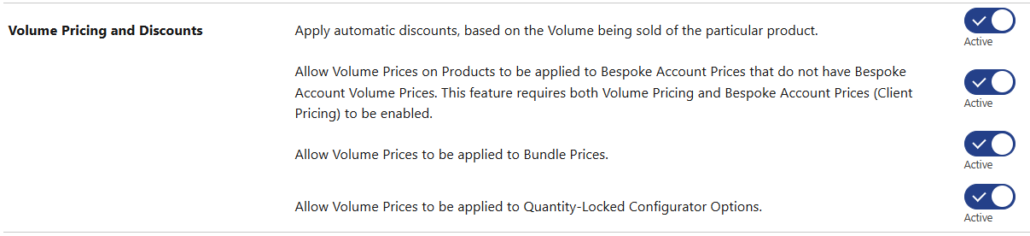
- Go to the Flexpricer Settings page and enable the toggle button next to the Volume Pricing and Discounts
- Go to Setup > Search (type Products) > Product > Page Layouts > Edit
- Under the Product Page Layout add the ‘Volume Prices‘ related list
- Next to the Volume Prices related list, click the spanner and select ‘Discount Percentage‘ and ‘Minimum Quantity‘ fields
- Click Save and Yes to override users’ customisations.
Note that there are 2 sub-features of Volume Pricing:
- Allow Volume Prices on Products to be applied to Contracted Prices that do not have Contracted Volume Prices
- Allow Volume Prices to be applied to Bundle Prices
- Allow Volume Prices to be applied to Quantity-Locked Configuration Options.
These additional features enable you to discount Contracted and Bundle prices by a Volume discount.
How to Configure Volume Pricing Records
- Go to the Product tab, select a product to add a volume price to
- Click New Volume Price
- Set the Minimum Quantity and then either
- Discount Percentage
- New Sales Price
- Or – any one of the Approval or Floor prefixed fields.
- Optionally set a Quantity Dimension if using Dimensional Product Quantities or Revenue Lifecycle. Setting a dimension enables a new sales price or discount to be applied on the quantity matchine or exceeding that on an individual dimension. Note that this capability works with Volume, not Tiered rules.
- Optionally set a Pricebook and Currency (if multi-currency is enabled). When a pricebook is specified, the volume price record will only be considered if the pricebook on the opportunity or quote matches the selected pricebook.
- Press Save.
How to Use Volume Pricing
- When a sales users adds a product to an opportunity/quote and that product has volume price records, the volume prices are display on a hover on the line item Quantity.
- The Volume Price hover is also available on Product Card search results.
- When the quantity of a line item is changed to above/below a volume price or price break quantity, the revised price (or discount) is automatically applied (for example, if you add a Quantity of 5 or more then the 10% discount will be applied)
Additional Information about Volume Pricing
- When a Volume Price is applied to a line item, the Sales Price of that line item can be subsequently adjusted, however any changes to the Quantity will re-apply the Volume Price. Any discounts to the Volume Price must be made by applying a percentage discount.
For example if you use the Quantity X dimension for ‘Users’ and Quantity Y dimension for ‘Months’, and wish to offer a 5% discount on 12 months or more, create a Volume Price record with the discount percentage as 5%, a quantity of 12 and with the Quantity Dimension picklist set to Quantity Y. If you wish to also offer a 10% discount for 100 users or more, create another Volume Price record with a discount percentage as 10%, a quantity of 100 and with the Quantity Dimension picklist set to Quantity X. When using Dimensional Quantities and Volume Pricing, you may set only one Quantity Dimension with a New Sales Price, other dimensions must be discounts.